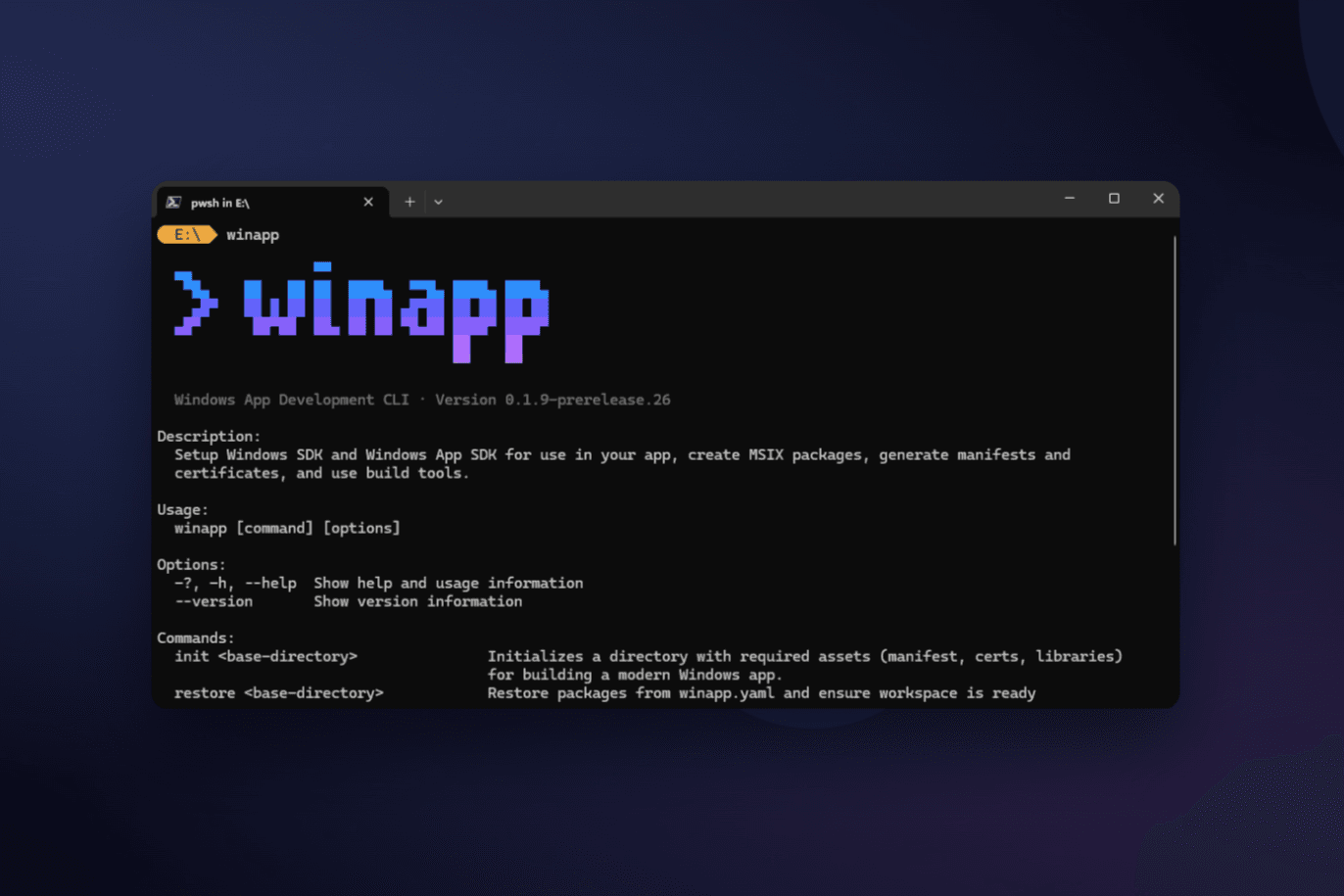
Microsoft proudly launches winapp, the Windows application development CLI.
Microsoft has released a public preview of its open-source command-line tool, winapp, to help cross-platform developers simplify the entire Windows application development process, including features such as environment configuration and packaging.
Related tags
We are excited to announce the public preview (winapp) of Windows App Development CLI, a new open-source command-line tool designed to simplify the development lifecycle of Windows applications across various frameworks and toolchains.
The winapp CLI is tailored for cross-platform frameworks and developers who don’t use Visual Studio or MSBuild. Whether you’re a developer building the web with Electron, a seasoned C++ user with CMake, or a developer building applications for Windows using .NET, Rust, or Dart, this CLI simplifies the complexities of Windows development—from environment setup to packaging and distribution. This makes it easier to access modern APIs directly from any toolchain, including the Windows AI API, security features, and shell integration.
Windows development often involves managing multiple SDKs, creating and editing multiple manifest files, generating certificates, and dealing with complex packaging requirements. This project aims to consolidate these tasks into a unified command-line interface (CLI), allowing you to focus on building great applications instead of struggling with tedious configurations. While this CLI is still in its early stages and many Windows development scenarios are still under development, we are releasing this public preview now to learn from real-world use, gather feedback and feature requests, and focus our resources on the areas most important to developers.
Let’s see what the winapp CLI can do for you.
🛠️ One-Click Environment Setup
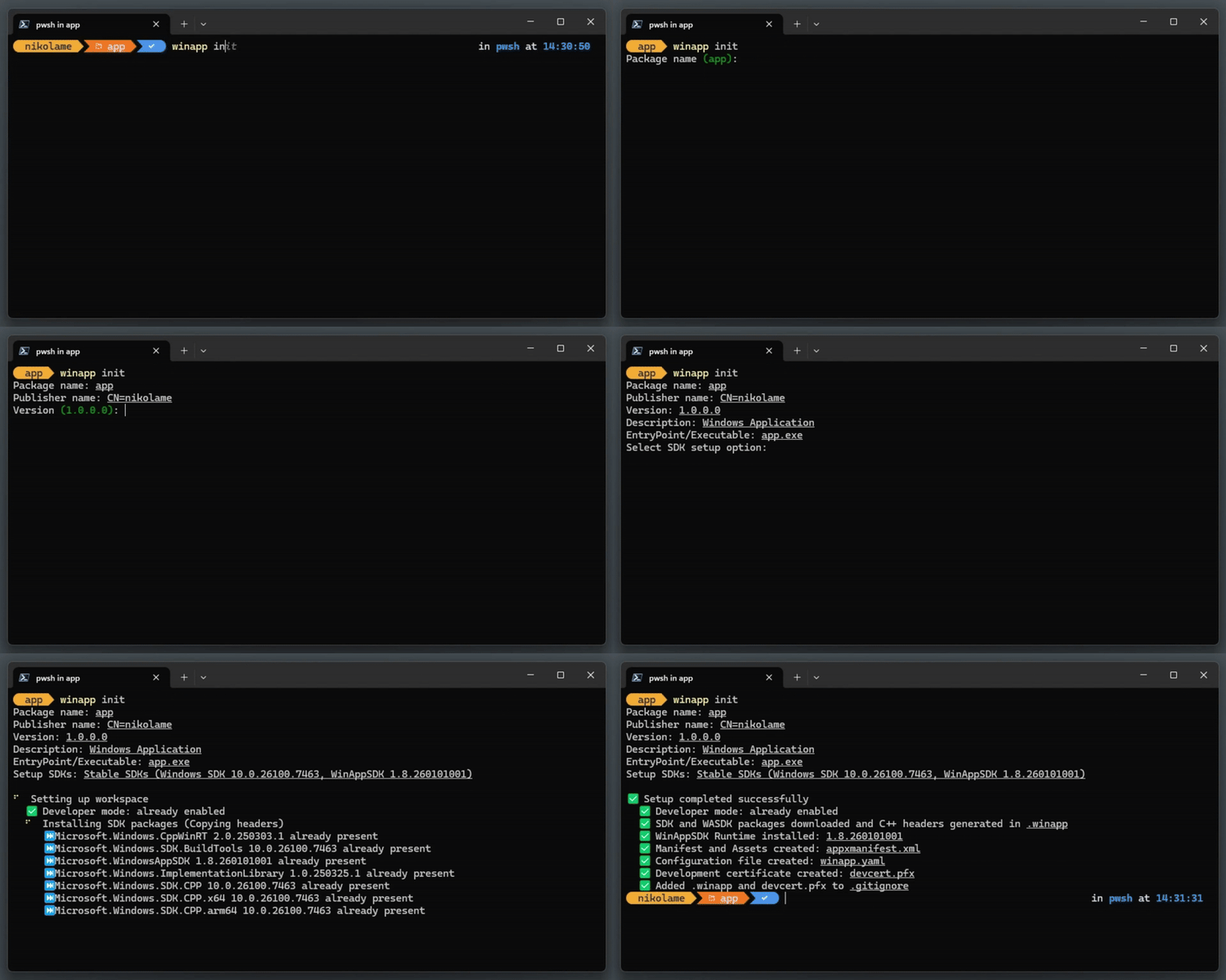
The init command guides you through your entire workspace. It downloads the necessary SDK packages, generates projections (C++/WinRT first), and configures your project for development. What used to require multiple error-prone manual steps can now be handled by a single CLI command, handling manifest and resource creation, certificate generation, and dependency management, saving you the hassle of manually setting up the development environment for each project.
First, run the following in the project root directory:
> winapp init
For projects spanning multiple machines or shared by developers, use winapp restore to reproduce the exact environment state defined in the configuration. For CI/CD environments, use GitHub and Azure DevOps Actions to automatically install the CLI.
🚀 Package Identity for Debugging
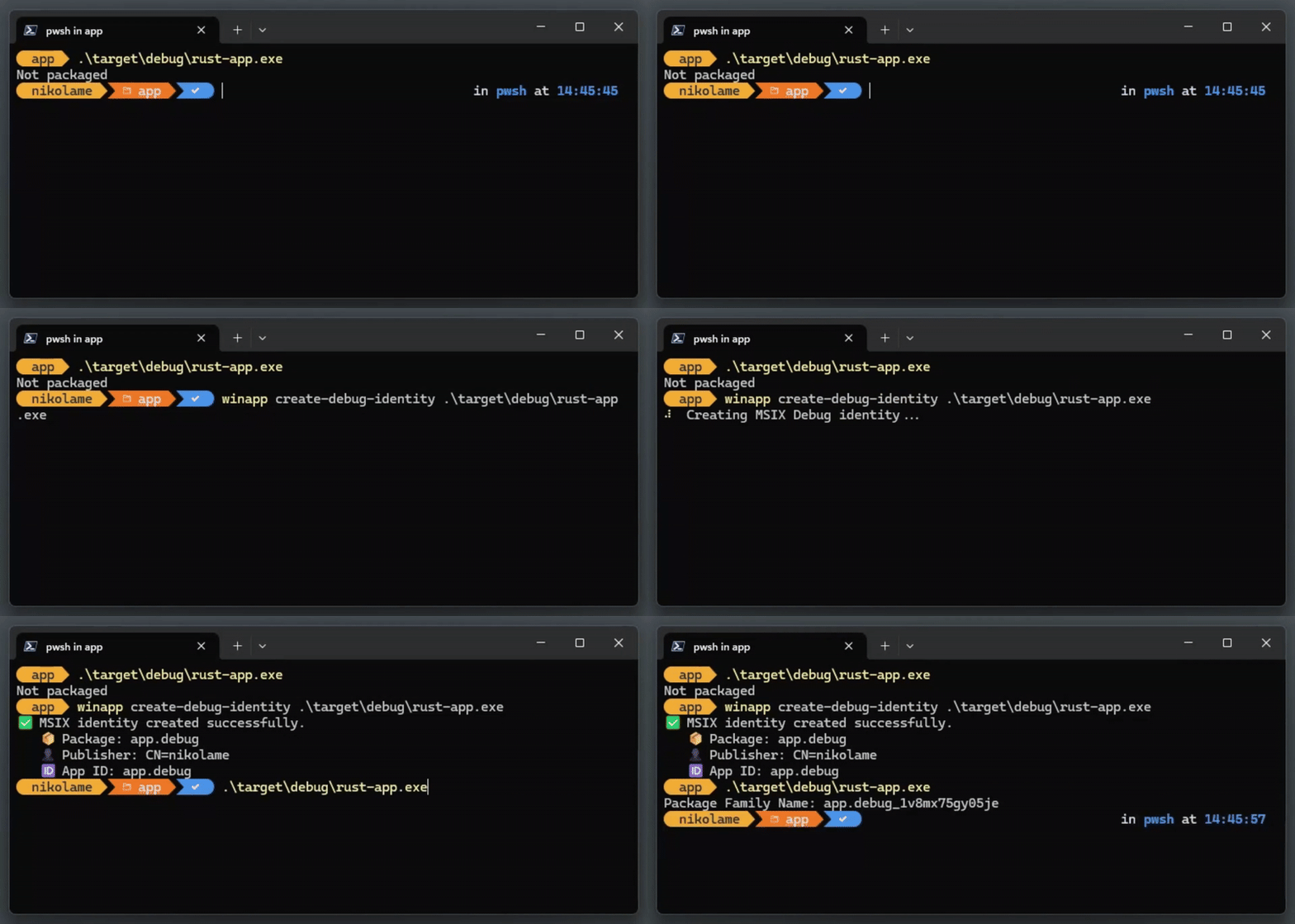
Many modern Windows APIs (such as the Windows AI API, Security API, Notification API, MCP Host API, etc.) require applications to have a package identity. Traditionally, this meant you had to fully package and install your application to test individual features, requiring multiple manual and detailed configuration steps that significantly slowed down the internal development loop.
Using the winapp CLI, you can add a package identity to your executable with a single command, allowing you to continue using the same development loop to test and debug any code that requires a package identity.
Simply run:
> winapp create-debug-identity my- app.exe
Please visit our Samples and Guides to learn how to integrate this command into different toolchains to improve the debugging experience.
📜 Using Manifests and Certificates
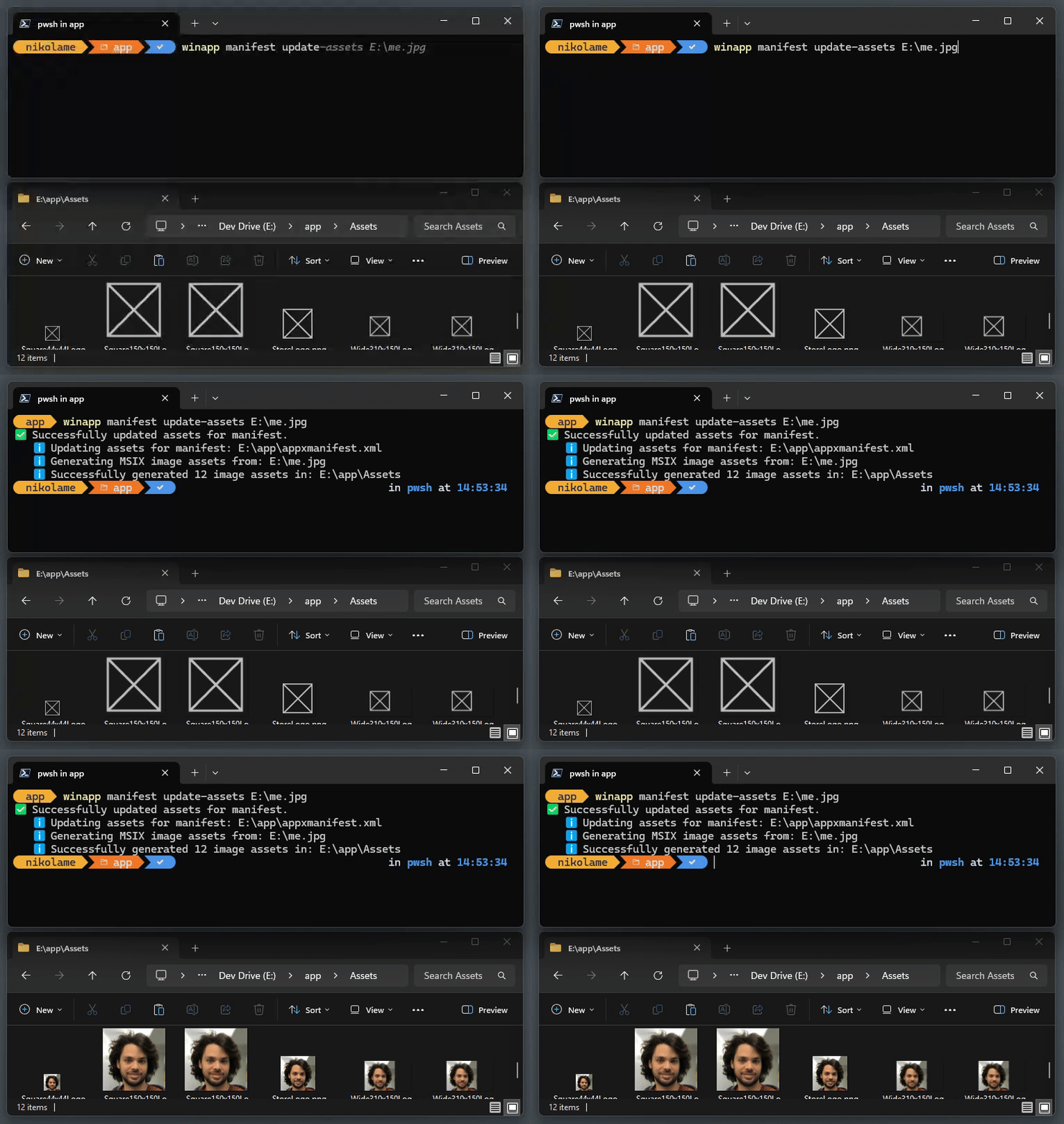
Creating a valid appxmanifest.xml file and setting up trusted development certificates is often a major challenge for novice Windows developers. The winapp CLI can automate these steps using the init command described above, and it also provides commands for directly creating and managing manifest files and development certificates.
You can generate new manifest files based on your project or executable, update image resources in an existing appxmanifest.xml with an existing logo, or create and install a self-signed development certificate using a single command. The CLI also allows you to optionally install the development certificate locally so you can test your package without additional configuration.
For example, use the following command to update all image resources referenced in appxmanifest.xml to the provided images, ensuring the images have the correct aspect ratio:
> winapp manifest update-assets C: \ images\my-logo.png
Similarly, to generate a development certificate that can be used for self-signing during sideloading and testing, you can use the following command:
> winapp cert generate
📦 Simplified MSIX Packaging
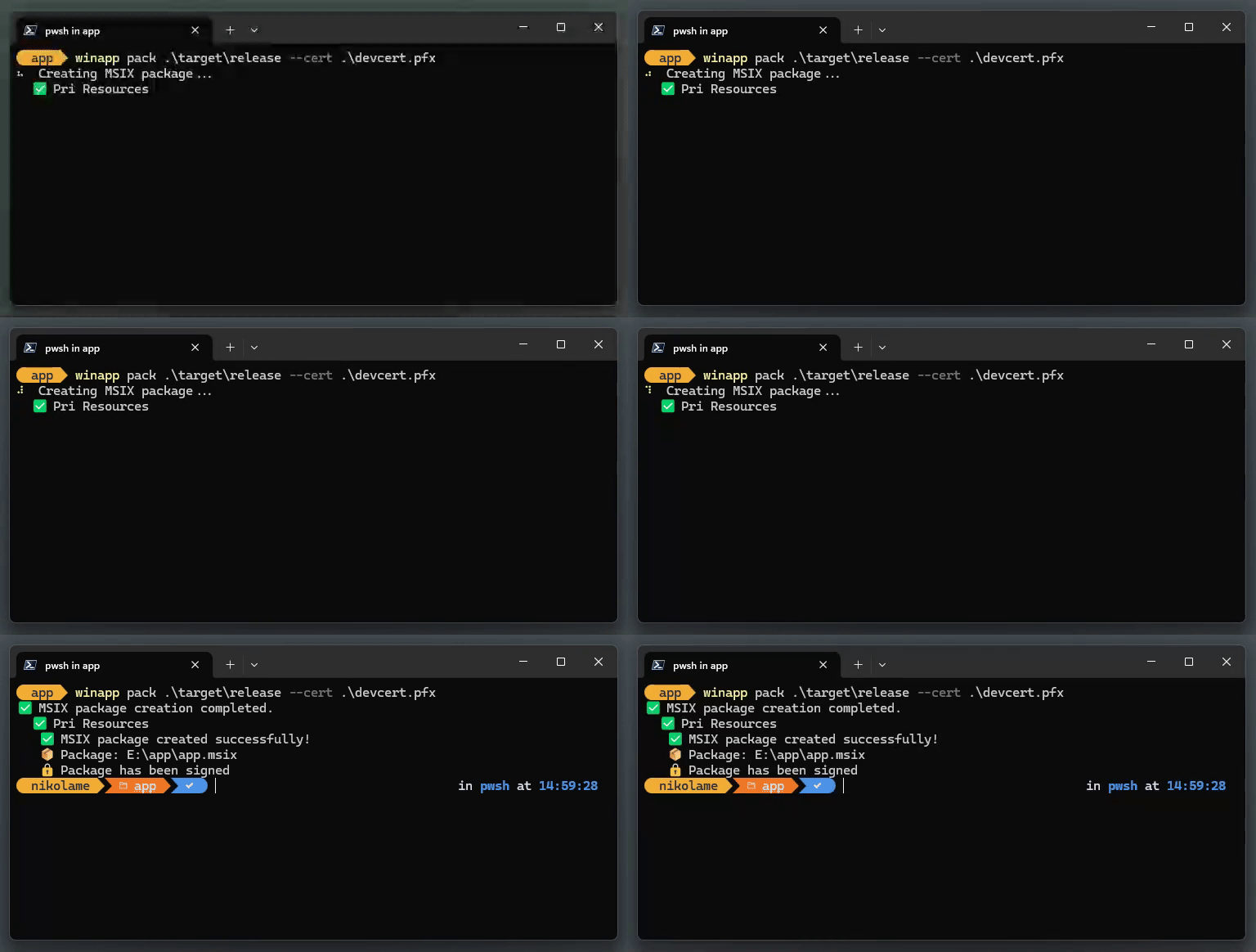
When ready for release, a single command is all it takes to package your application as an MSIX file. The CLI handles the packaging and signing process and generates packages that can be directly stored or sideloaded based on your build output.
> winapp pack ./my-app-files --cert ./devcert.pfx
⚡ Electron Integration
For Electron developers, we’ve packaged the CLI as an npm package and added commands to bridge the gap between Node.js and native Windows code. This CLI can generate native C++ or C# plugins and is pre-configured to access the Windows App SDK and Windows SDK. This makes integrating high-performance native features or AI capabilities (such as Phi Silica) directly into Electron applications easier than ever before.
We’ve also simplified the debugging loop. With winapp node add-electron-debug-identity, you can inject the Package Identity directly into the running Electron process. This way, you can simply call npm start to test and debug APIs that require authentication (such as the Windows AI API). It even automatically bootstraps the Windows App SDK, allowing you to focus on code writing without worrying about the underlying details.
Furthermore, to help validate the CLI and simplify the use of certain APIs, we’ve begun building experimental NodeJS projections for APIs like LanguageModel using the CLI. Check out our @microsoft/winapp-windows-ai npm package to learn how to use the Windows AI API directly from NodeJS.
More News
Want to see more quality content?
Browse all news